 Easy OTPEasy OTP
Two-factor codes in your Mac's menu bar. Click an account and its current code is copied to the clipboard.

Requires macOS.
.dmg and drag Easy OTP into Applications.xattr -dr com.apple.quarantine "/Applications/Easy OTP.app"Requires macOS and Node.js 22 or later.
git clone https://github.com/iambriansreed/easy-otp.git && cd easy-otp && npm install && npm run make-icons && npm run buildThe installer is written to easy-otp/dist/Easy OTP-<version>-arm64.dmg. The development guide covers the other scripts.
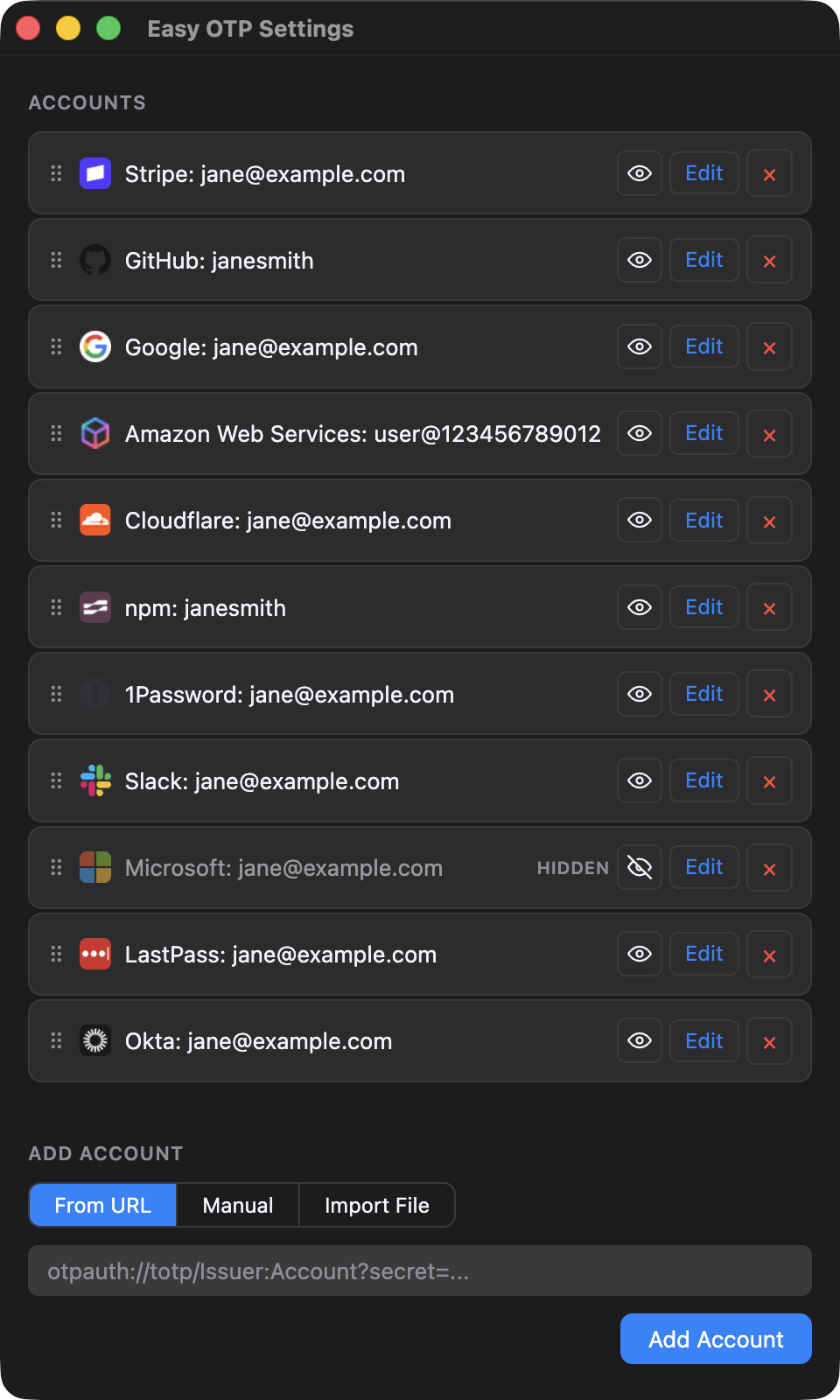
Click the Easy OTP icon in the menu bar and choose Easy OTP Settings.... The Add Account section has three tabs:
otpauth://totp/ URL, like the one encoded in a setup QR code..txt file with one otpauth:// URL per line. Easy OTP reports how many accounts were added, updated, and skipped.Accounts are matched by issuer and account name, so adding one you already have updates it instead of creating a copy. Imports keep any icon you already chose.
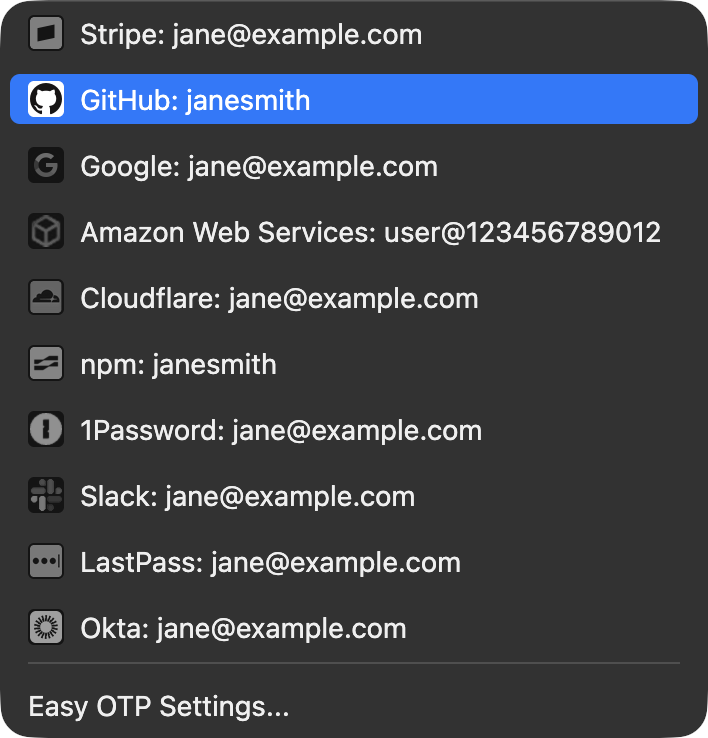
Click an account in the menu. Its code is copied to the clipboard, and the menu shows the issuer and code in large type until you click somewhere else. For the next minute, the top of the menu shows which account you copied last.

With the menu open, Up Arrow and Down Arrow move the highlight, Return or Space copies, and Esc closes it. Command-Q quits, or use the Quit Easy OTP item at the bottom of the menu.
If you add an account without an emoji, Easy OTP guesses the service's website from the issuer name and fetches its icon. Any account still missing an icon is filled in the next time the app starts, or right away with Find Missing Icons, which appears in Settings whenever an account has no icon.
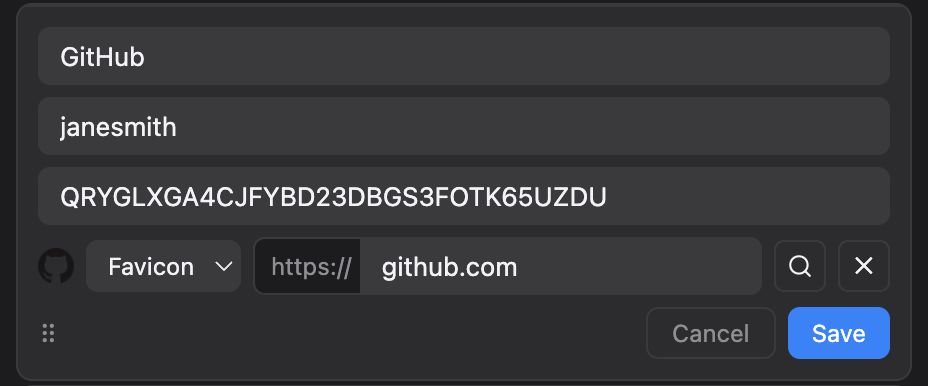
To fix a wrong or missing icon, click Edit on the account. With Favicon selected, type the service's website and the icon is looked up as you type. Choose Emoji to open the macOS emoji picker instead.
In the menu, icons stay grey until you point at an account, then show in full color.
Drag the handle on the left of an account to change its position in the menu. The eye button hides an account from the menu; it stays in Settings marked Hidden. Edit changes an account's details and × deletes it.
Accounts are saved to one file on your Mac, encrypted with Electron's safeStorage. The only network requests Easy OTP makes are icon lookups, which send a website name to DuckDuckGo's icon service, and to Google's only when DuckDuckGo has no icon for it. Secrets are never sent anywhere.
Easy OTP generates standard TOTP codes: 6 digits, a new code every 30 seconds, using SHA-1. Accounts set up for 8 digits, a different interval, another algorithm, or counter-based (HOTP) codes won't work.